
🔰 Introduction:
“If you’re wondering how to use Microsoft Copilot effectively, this guide walks you through Word, Excel, and Outlook.”
Microsoft Copilot is revolutionizing productivity in Microsoft 365 apps like Word, Excel, and Outlook. Whether you’re a student, business owner, or office professional, Copilot can help you write faster, analyze data smarter, and manage emails more efficiently.
In this guide, we’ll walk you through how to use Microsoft Copilot inside your favorite apps with real-world examples.
🧠 What Is Microsoft Copilot?
Microsoft Copilot is an AI-powered assistant built into Microsoft 365 apps. It leverages OpenAI’s GPT-4 technology combined with Microsoft Graph to understand your documents, emails, calendar, and files, offering smart, contextual suggestions.
💼 1. How to Use Copilot in Microsoft Word
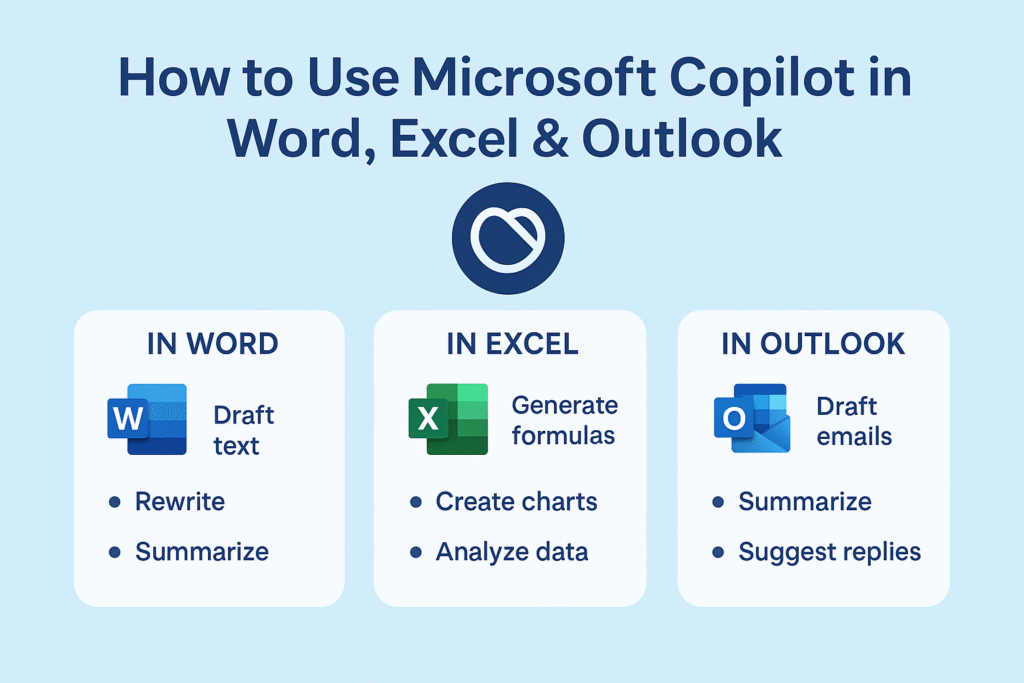
✍️ Key Features:
- Draft blog posts, letters, reports
- Rewrite the content in different tones
- Summarize long documents
- Suggest headings or outlines
✅ Steps:
- Open Microsoft Word (must be 365 version).
- Look for the Copilot icon in the top ribbon.
- Click the icon and type a prompt like: “Write a formal leave application.”
- Copilot will insert the content — edit as needed.
- Use follow-up prompts like: “Make it shorter” or “Add bullet point.s”
📊 2. How to Use Copilot in Microsoft Excel
📈 Key Features:
- Generate formulas
- Create charts and pivot tables
- Analyze trends in your data
- Ask natural language questions
✅ Steps:
- Open your Excel sheet with data.
- Click on the Copilot icon in the ribbon.
- Type a question like: “Show me the top 5 selling products this month”
- Copilot will run the necessary formulas and show visual charts.
- You can ask: “Forecast next quarter sales” or “Summarize this table”
📧 3. How to Use Copilot in Microsoft Outlook
💬 Key Features:
- Draft and reply to emails
- Summarize long email threads
- Suggest responses based on tone
- Automate meeting follow-ups
✅ Steps:
- Open Outlook and navigate to your inbox.
- Select an email thread, click the Copilot icon.
- Prompt example: “Summarize this email thread in 3 lines.”
- Copilot replies with a summary.
- You can also say: “Reply to this professionally” or “Schedule a meeting for next wee.k”
🔐 Requirements to Use Microsoft Copilot
- ✅ Microsoft 365 Business or Enterprise subscription
- ✅ Copilot license (additional subscription)
- ✅ The latest version of Word, Excel, and Outlook is installed
- ✅ Internet connection
- ✅ Windows 11 or the latest macOS
🛠️ Troubleshooting Tips
| Problem | Solution |
|---|---|
| Copilot icon not showing | Update Office apps and check subscription |
| Error: Not available for your account | Ensure the Copilot license is assigned |
| No response from Copilot | Check the internet, firewall, or reinstall Office |
💡 Use Cases
| User | Copilot Can Help With |
|---|---|
| Student | Summarizing study notes, writing essays |
| Business owner | Drafting proposals, replying to clients |
| Analyst | Data insights and automated reports |
| HR/Manager | Email templates, performance reports |
📌 Conclusion:
Whether you’re writing documents, crunching numbers, or replying to emails, Microsoft Copilot is your AI partner inside Word, Excel, and Outlook. Once you get used to it, you’ll wonder how you ever worked without it!
Need help deciding between Copilot and ChatGPT? Read our full comparison guide.